Showing posts with label in. Show all posts
Showing posts with label in. Show all posts
Wednesday, May 24, 2017
Commands Used in Command Prompt
Commands Used in Command Prompt
If you want to know commands used in Command Prompt, just type "help" and you will get the following commands with their description.
ASSOC Displays or modifies file extension associations.
AT Schedules commands and programs to run on a computer.
ATTRIB Displays or changes file attributes.
BREAK Sets or clears extended CTRL+C checking.
CACLS Displays or modifies access control lists (ACLs) of files.
CALL Calls one batch program from another.
CD Displays the name of or changes the current directory.
CHCP Displays or sets the active code page number.
CHDIR Displays the name of or changes the current directory.
CHKDSK Checks a disk and displays a status report.
CHKNTFS Displays or modifies the checking of disk at boot time.
CLS Clears the screen.
CMD Starts a new instance of the Windows command interpreter.
COLOR Sets the default console foreground and background colors.
COMP Compares the contents of two files or sets of files.
COMPACT Displays or alters the compression of files on NTFS partitio
CONVERT Converts FAT volumes to NTFS. You cannot convert the
current drive.
COPY Copies one or more files to another location.
DATE Displays or sets the date.
DEL Deletes one or more files.
DIR Displays a list of files and subdirectories in a directory.
DISKCOMP Compares the contents of two floppy disks.
DISKCOPY Copies the contents of one floppy disk to another.
DOSKEY Edits command lines, recalls Windows commands, and creates m
ECHO Displays messages, or turns command echoing on or off.
ENDLOCAL Ends localization of environment changes in a batch file.
ERASE Deletes one or more files.
EXIT Quits the CMD.EXE program (command interpreter).
FC Compares two files or sets of files, and displays the differ
between them.
FIND Searches for a text string in a file or files.
FINDSTR Searches for strings in files.
FOR Runs a specified command for each file in a set of files.
FORMAT Formats a disk for use with Windows.
FTYPE Displays or modifies file types used in file extension assoc
GOTO Directs the Windows command interpreter to a labeled line in
batch program.
GRAFTABL Enables Windows to display an extended character set in grap
mode.
HELP Provides Help information for Windows commands.
IF Performs conditional processing in batch programs.
LABEL Creates, changes, or deletes the volume label of a disk.
MD Creates a directory.
MKDIR Creates a directory.
MODE Configures a system device.
MORE Displays output one screen at a time.
MOVE Moves one or more files from one directory to another direct
PATH Displays or sets a search path for executable files.
PAUSE Suspends processing of a batch file and displays a message.
POPD Restores the previous value of the current directory saved b
PRINT Prints a text file.
PROMPT Changes the Windows command prompt.
PUSHD Saves the current directory then changes it.
RD Removes a directory.
RECOVER Recovers readable information from a bad or defective disk.
REM Records comments (remarks) in batch files or CONFIG.SYS.
REN Renames a file or files.
RENAME Renames a file or files.
REPLACE Replaces files.
RMDIR Removes a directory.
SET Displays, sets, or removes Windows environment variables.
SETLOCAL Begins localization of environment changes in a batch file.
SHIFT Shifts the position of replaceable parameters in batch files
SORT Sorts input.
START Starts a separate window to run a specified program or comma
SUBST Associates a path with a drive letter.
TIME Displays or sets the system time.
TITLE Sets the window title for a CMD.EXE session.
TREE Graphically displays the directory structure of a drive or p
TYPE Displays the contents of a text file.
VER Displays the Windows version.
VERIFY Tells Windows whether to verify that your files are written
correctly to a disk.
VOL Displays a disk volume label and serial number.
XCOPY Copies files and directory trees.
ASSOC Displays or modifies file extension associations.
AT Schedules commands and programs to run on a computer.
ATTRIB Displays or changes file attributes.
BREAK Sets or clears extended CTRL+C checking.
CACLS Displays or modifies access control lists (ACLs) of files.
CALL Calls one batch program from another.
CD Displays the name of or changes the current directory.
CHCP Displays or sets the active code page number.
CHDIR Displays the name of or changes the current directory.
CHKDSK Checks a disk and displays a status report.
CHKNTFS Displays or modifies the checking of disk at boot time.
CLS Clears the screen.
CMD Starts a new instance of the Windows command interpreter.
COLOR Sets the default console foreground and background colors.
COMP Compares the contents of two files or sets of files.
COMPACT Displays or alters the compression of files on NTFS partitio
CONVERT Converts FAT volumes to NTFS. You cannot convert the
current drive.
COPY Copies one or more files to another location.
DATE Displays or sets the date.
DEL Deletes one or more files.
DIR Displays a list of files and subdirectories in a directory.
DISKCOMP Compares the contents of two floppy disks.
DISKCOPY Copies the contents of one floppy disk to another.
DOSKEY Edits command lines, recalls Windows commands, and creates m
ECHO Displays messages, or turns command echoing on or off.
ENDLOCAL Ends localization of environment changes in a batch file.
ERASE Deletes one or more files.
EXIT Quits the CMD.EXE program (command interpreter).
FC Compares two files or sets of files, and displays the differ
between them.
FIND Searches for a text string in a file or files.
FINDSTR Searches for strings in files.
FOR Runs a specified command for each file in a set of files.
FORMAT Formats a disk for use with Windows.
FTYPE Displays or modifies file types used in file extension assoc
GOTO Directs the Windows command interpreter to a labeled line in
batch program.
GRAFTABL Enables Windows to display an extended character set in grap
mode.
HELP Provides Help information for Windows commands.
IF Performs conditional processing in batch programs.
LABEL Creates, changes, or deletes the volume label of a disk.
MD Creates a directory.
MKDIR Creates a directory.
MODE Configures a system device.
MORE Displays output one screen at a time.
MOVE Moves one or more files from one directory to another direct
PATH Displays or sets a search path for executable files.
PAUSE Suspends processing of a batch file and displays a message.
POPD Restores the previous value of the current directory saved b
PRINT Prints a text file.
PROMPT Changes the Windows command prompt.
PUSHD Saves the current directory then changes it.
RD Removes a directory.
RECOVER Recovers readable information from a bad or defective disk.
REM Records comments (remarks) in batch files or CONFIG.SYS.
REN Renames a file or files.
RENAME Renames a file or files.
REPLACE Replaces files.
RMDIR Removes a directory.
SET Displays, sets, or removes Windows environment variables.
SETLOCAL Begins localization of environment changes in a batch file.
SHIFT Shifts the position of replaceable parameters in batch files
SORT Sorts input.
START Starts a separate window to run a specified program or comma
SUBST Associates a path with a drive letter.
TIME Displays or sets the system time.
TITLE Sets the window title for a CMD.EXE session.
TREE Graphically displays the directory structure of a drive or p
TYPE Displays the contents of a text file.
VER Displays the Windows version.
VERIFY Tells Windows whether to verify that your files are written
correctly to a disk.
VOL Displays a disk volume label and serial number.
XCOPY Copies files and directory trees.
Go to link Download

Thursday, April 6, 2017
Capture Screen in Mac OS X Lion
Capture Screen in Mac OS X Lion
Hello all, through this article I will share how to take a screen capture on your Mac OS X Lion. There are several ways to performing this task, read them carefully:
- Launch Preview
- From the “File” menu select “Take Screen Shot” you can choose one of three options below:
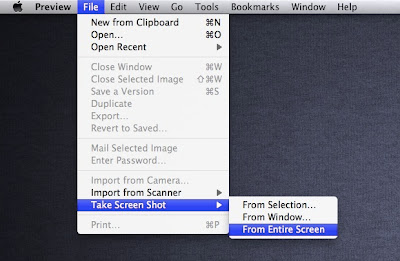
- From Selection – brings up the selection tool
- From Window – capture an active window
Go to link Download
Tuesday, February 28, 2017
Canon Pixma MX475 All in One Wi Fi Printer Download Driver For Windows Mac Os And Linux
Canon Pixma MX475 All in One Wi Fi Printer Download Driver For Windows Mac Os And Linux
Canon Pixma MX475 All-in-One Wi-Fi Printer.
 |
| MX 475 All-in-one Wifi Printer |
OVERVIEW.
Print, copy, scan and fax with ease using this affordable Wi-Fi All-In-One. Share functions between multiple PCs as well as mobile devices and enjoy the optional cost effective XL ink cartridges.
Wireless connectivity for easy sharing around the home and office & PIXMA Printing Solutions app, Google Cloud Print and Apple AirPrint support.
FEATURES.
* Printer:
- Compatible with PC and Mac.
- A4 print speed - black text: 9.7ppm (pages per minute).
- A4 print speed - colour text: 5.5ppm (pages per minute).
- Up to 4800 x 1200dpi print resolution.
- 100 sheet paper capacity.
- Uses 2 ink cartridges.
* Scanner and copier :
- 1200 x 1200dpi optical resolution.
* Fax :
- 50 page memory.
- PictBridge - print images directly from a digital camera.
- USB port.
* Connectivity :
- Wireless/WiFi enabled.
- Apple AirPrint.
- Google Cloud Print.
DRIVER DOWNLOAD.
| OS | DRIVER |
| * Windows. Driver Full Packet Windows 10/10x64/8.1/8.1x64/8/8x64/7/7x64/Vista/Vista64/XP Windows 10 32/64bit,8.1 32/64bit,8 32/64bit,7 32/64bit,Vista 32/64bit * Mac OS. OS X 10.11, 10.10, 10.9, 10.8, Mac OS X 10.7 * Linux Linux 32/64 Bit | DOWNLOAD DOWNLOAD DOWNLOAD DOWNLOAD |
Go to link Download
Wednesday, February 8, 2017
Canon PIXMA MP560 Wireless Inkjet All In One Photo Printer
Canon PIXMA MP560 Wireless Inkjet All In One Photo Printer

Winamp Pro 5.601 Build 3091 Final merupakan salah satu tools pemutar musik dan video yang sangat populer saat ini. Selain tampilannya fleksibel, high-fidelity, tools ini juga mendukung berbagai jenis pemutaran audio, sebut saja seperti (MP3, Ogg, AAC, WAV, MOD, XM, S3M, IT, MIDI, dll) dan jenis video (AVI, ASF , MPEG, NSV). Selain itu untuk penggunaan skin/tampilannya pun dapat di ubah-ubah sesuai dengan skin yang ada. Dan tentu saja Software ini mendukung visualisasi audio dan efek audio plug-in seperti DFX Audio Enhancer 9.300 (8 in 1) (untuk memaksimalkan kualitas suara), Crintsoft MiniLyrics v7.0.554 (menampilkan lirik dari lagi yang di putar) dan Mp3 Remix for Winamp (jika anda ingin me-remix sebuah lagu mp3).
More Feature Winamp 5.6:
- New: [pmp_wifi] Android Wi-Fi support
-
- New: Direct mouse wheel support
- New: Option to write ratings to tags (for mp3, wma/wmv, ogg & flac)
- Improved: Redesigned Devices/Portables view in Media Library
- Updated: Gracenote CDDB/MusicID v2.6.206
- Updated: [gen_jumpex] JTFE v1.2.3
- Updated: [in_vorbis] libogg v1.2.1 & libvorbis v1.3.2
- Updated: [vp8] libvpx v0.9.5
- Improved: New on-the-fly “Vertically flip (Shift+F)” option in Video context menu
- Improved: [dlmgr/jnetlib] Handling of http status codes 100 & 201-206
- Improved: [ml_plg] Playlist Generator: context menu dialog & other features
- Improved: [ml_pmp] More user-friendly Transcoding options for portable devices
- Improved: [ml_transcode] Added support for
& in naming scheme - Improved: [nsutil] Optimized video flip modes
- Improved: [pmp_android/ipod] Added encoder blacklist
- Improved: [ReplayGainAnalysis] Support for more sample rates
- Fixed: DLL load security vulnerability
- Fixed: [enc_lame] Memory leak
Go to link Download
Monday, December 12, 2016
Cartridge in Canon Mp210
Cartridge in Canon Mp210
This a the way to reset your print
* Turn off the printer
* Hold the Resume Button (red circle in the triangle), add a printer (click “Power”) an indicator light green.
* Hold the Power Button, release the Resume Button.
* Not releasing the Power Button, double click “Resume” and release Both Buttons.
* Click “Resume” for Four times
* Once you click “Power”, to confirm the selected action (reset counter absorber). To disable the printer “Power” button to click again.
Go to link Download
Wednesday, November 16, 2016
Canon PIXMA MP476 All in one
Canon PIXMA MP476 All in one

Design of the Canon PIXMA MP476 All-in-one Inkjet Printer
The Canon PIXMA MP476 uses the same basic design as the PIXMA MP510. The black-and-silver body measures 451 x 353 x 169mm. The silver scanner lid conceals an A4-size flatbed scanner. Because the MP476 lacks an automatic document feeder, you cant scan legal-size documents.
The paper handling system is simple. A paper input support flips open in the rear and the front panel of the printer folds open to serve as the output tray. Next to the output tray is a small door that conceals two memory card slots. The slots accept most common types of memory cards, though some require an adapter (which is not included).
Hidden away under the memory cards is a PictBridge-enabled USB port (its so hidden that we missed it on first inspection). You can use it to connect PictBridge cameras for direct printing, or to attach an optional Bluetooth adapter (sold separately) for wireless printing. The one thing you cant attach to the USB port is a flash thumbdrive; the Dell Photo 926 lets you print files from an attached flash drive.
The control panel is hidden underneath a flip-up panel on the top side of the printer. Embedded on the underside of the panel is a 1.8-inch graphical LCD. The control panel is basic, though well-organized. Buttons include task buttons for copy, scan, and memory card modes, menu navigation buttons, and two start buttons--one for black-only and one for color.
The PIXMA MP476 uses a two-tank ink system: One black and one tri-color. It ships with regular capacity cartridges, but you can replace both with high-capacity versions.
Go to link Download
Saturday, November 12, 2016
Canon Printer Error 306 in Mac Computer
Canon Printer Error 306 in Mac Computer
Problem
When you attempt to print from your Canon Printer using a Mac, a message appears stating Error 306.
Solution
- Click the Apple icon in the top left of the screen.
- Click System Preferences.
- Click Print & Fax.
- If the padlock in the bottom left is locked:
Click it, enter your password and click OK. - Click the – button. to remove the printer and the + to add it again leaving the options on default..
- if you are facing more problems Call Canon +1-855-517-2433.
Go to link Download
Thursday, October 13, 2016
Canon PIXMA MP476 All in one Inkjet Printer
Canon PIXMA MP476 All in one Inkjet Printer

Design of the Canon PIXMA MP476 All-in-one Inkjet Printer
The Canon PIXMA MP476 uses the same basic design as the PIXMA MP510. The black-and-silver body measures 451 x 353 x 169mm. The silver scanner lid conceals an A4-size flatbed scanner. Because the MP476 lacks an automatic document feeder, you cant scan legal-size documents.
The paper handling system is simple. A paper input support flips open in the rear and the front panel of the printer folds open to serve as the output tray. Next to the output tray is a small door that conceals two memory card slots. The slots accept most common types of memory cards, though some require an adapter (which is not included).
Hidden away under the memory cards is a PictBridge-enabled USB port (its so hidden that we missed it on first inspection). You can use it to connect PictBridge cameras for direct printing, or to attach an optional Bluetooth adapter (sold separately) for wireless printing. The one thing you cant attach to the USB port is a flash thumbdrive; the Dell Photo 926 lets you print files from an attached flash drive.
The control panel is hidden underneath a flip-up panel on the top side of the printer. Embedded on the underside of the panel is a 1.8-inch graphical LCD. The control panel is basic, though well-organized. Buttons include task buttons for copy, scan, and memory card modes, menu navigation buttons, and two start buttons--one for black-only and one for color.
The PIXMA MP476 uses a two-tank ink system: One black and one tri-color. It ships with regular capacity cartridges, but you can replace both with high-capacity versions.
Go to link Download
Tuesday, October 4, 2016
Canon Printing Setting up a Wireless Printer in 5 Easy Steps
Canon Printing Setting up a Wireless Printer in 5 Easy Steps

Canon Printing Setting up a Wireless Printer in 5 Easy Steps
1. Determine the Type of Wireless Printer
Youll be using the wireless router to connect the new wireless printer to your home network so make sure the router is up and running. Most new computers and wireless printers are equipped with either Bluetooth or Wi-Fi capabilities. If your printer is not wireless you can purchase a wireless card that plugs into a USB port.
2. Select the Location of the Wireless Printer
The wireless printer should be set up in a place at home or in the office that is accessible to everyone and where there is ample space for paper, printer ink and other supplies. If you are using Bluetooth wireless you may want to give this some thought since Bluetooth printers have a smaller wireless range than Wi-Fi printers.
3. Enable Printer Sharing
The server computers operating system must be informed that the printer you are adding to the network is a wireless printer. (The server computer is the one the printer is connected to.)
In Windows Vista, this is done by accessing the network settings in the Control Panel and then activating file and printer sharing in the local area network settings.
For Windows XP go to Start, Control Panel, Printers and Other Hardware, "View installed printers or fax printers." Right-click on your printer and select "Sharing", then select "Share this Printer." Give the printer a name and click OK.
4. Add the Wireless Printer to any other Computers on your Network
The other computers on the network must also be set up for using the wireless printer. To do this in Windows Vista, open the Control Panel in the classic view and then open Printers. Right click on the printer that is going to be shared, and then open Properties. In Properties, check the box that allows the printer to be a shared device.
For Windows XP you will need to do the following:
· Open Control Panel, Printers and Faxes, and click on "Add a printer."
· This will take you into a wizard to find the printer you shared previously.
· Click Next until you are at the Local or Network Printer page.
· Select "A network printer or a printer attached to another computer" and click Next.
· Now click "Browse for a printer" and click Next. This will display your workgroup, the PCs connected to it and any printers that are attached to them.
· Click on the wireless printer you shared earlier and click Next. [This should install the driver automatically. If not, you may need to get the CD software that came with the printer.]
· Now click Yes to make the wireless printer the default printer for this PC (or No if the computer already has one attached to it).
· Click Finish.
5. Troubleshooting Wireless Printers
Both this computer and the one the wireless printer is attached to might need a reboot. If youre not seeing the computer it is attached to, double-check that all computers have the same network name: go to Control Panel, Performance & Maintenance, "See basic information about your computer." From there click on "Computer Name" and your workgroup will be displayed.
If youre not seeing the printer, make sure its switched on. If printer still doesnt work, you may need to install the printer driver using the software CD that came with it.
Post a Question....
Any Kind of Canon Printer Problems Call Us
+1-855-517-2433 (TollFree)
+1-855-517-2433 (TollFree)
Go to link Download
Subscribe to:
Posts (Atom)