Showing posts with label series. Show all posts
Showing posts with label series. Show all posts
Sunday, June 25, 2017
Canon Printer Reset EEPROM MP Series 198 250 258 270 276 496 558 568 648
Canon Printer Reset EEPROM MP Series 198 250 258 270 276 496 558 568 648
How to Reset Canon MP198, MP 250, MP258, MP270, MP276, MP496, MP558, MP568 and MP648 All In One Printer.
Hello Canon AIO users. Ive received a few e-mails recently regarding troubleshooting for Canon printers. My trouble shooting guide, tips and tricks is based on what Ive experienced with. More or less, the tips is still valid, if you have the same or equivelant Canon MP Series printer models, then you could give it a try.
Today, I would like to share with you a more advance troubleshooting guide for your Canon MP Series All In One printer. The Canon Printer MP Series models stated above. I am not sure if it will troubleshoot other MP printer models, but my advise, with a little of Google-ing, by mix match technical specifications with the above printers and yours, if its compatible, why not, have a go.

Why my printer model not listed, but the images displayed looks exactly the same? Well, as Canon printers especially the Canon MP Series AIO printer is available all over the world, it is part of their marketing strategy, which is fairly different between one country to another. Certain countries will have the same model code while others, might have a slight change depending on the added features for that model. So, these printers will have the same outlook but a slightly different features inside. For your info, some of AIO printers uses almost the same internal boards for printing.
EEPROM Reset Tool
 This is a reset tool I found during mid 2009 and amazingly, it is still there and ready to download for personal use. This is an EEPROM Clear Tool for Canon MP198, MP 250, MP258, MP270, MP276, MP496, MP558, MP568 and MP648 All In One Printer and also acts as a resetter tool which will reset the basic printer features from your personal computer. Due to the initial design for Canon MP Series AIO printer for home and small office use, the resetter tool was specially developed to facilitate some P-XX ERRORS (cause from extensive printing).
Personally, Ive used this resetter tool on Canon MP 250, MP258, MP270 and MP278 AIO printers. But for the rest of the list, you probably have to find out since Ive not tested it before. The resetter tool is used for:
- Reset black ink counter.
- To reset colour ink counter
- To reset ink absorber counter
- Ink cleaning from PC button
- Check paper feed maintenance work from printer
- Prevent on screen low level ink warnings during printing jobs on your PC
This reset tool will not do the following:-
- Stop the low level blinking at printer
- Stop the orange blinking due to paper feed error
Note: There is NO resetting method to stop the low ink level blinking on your Canon MP Series printer. The alarm is designed based on the initial ink cartridge inserted from its first use. Canon MP Series printers uses print counts to check ink levels, not by a special level gauge built at ink cartridge. So, the low ink level blinking can be disregarded if you are using ink refills cartridges.
Step by step to Reset your Canon MP Series AIO Printer
Step by step to Reset your Canon MP Series AIO Printer
Step 1
Download MP Tool Reset tool ServiceTool_1050.zip (no password required-if ad does not automatically clear, press skip ads top right corner) here and extract. It comes in a .zip file and you do not have to install to your PC. Its safe and runs under Windows Vista, Windows Xp and Windows 7 (All Versions)
Step 2
Entering your printer into service mode.
- Turn the printer off if the printer power is on. Remove printer USB cable from your computer.
- While the printer is OFF, press and hold the Start/Stop button, if not, on other models press Resume/Cancel button.
- While still holding the Start/Stop button or Resume/Cancel button, press and hold the POWER button.
- When the POWER LED (green light) is lit, release the Start/Stop or Resume/Cancel button (still holding the POWER button).
- While still holding the power button, Press the Start/Stop button or Resume/Cancel button TWICE then Release the POWER button. Wait until LCD printer display 0 (zero) on the printer display counter.
- After the display is 0, attach the printer USB cable to your computer, it will detect a new device installed (its normal), and now you can go to the resetting steps.
Step 3
Resetting Ink counter on the Computer
Run “service_tool 1050.exe”. you can download the service tool software from the link given above.
After the steps completed, turn off the printer and then turn printer back on. If printer button does not switch off by pressing once, turn of the power cable. After turning on back again. your printer will automatically be out of service mode and ready for use.
Note: You can try to use its other features during STEP 3 eg. cleaning, check paper feed button, if it is compatible with your printer internal board.
Run “service_tool 1050.exe”. you can download the service tool software from the link given above.
- Confirm detected USB-port number on USB port column on your computer.
- Click “Main button” on Clear ink counter section. Make sure there are papers in the paper feed because the printer will print after the process is complete.
- Click on the “Clik MAIN” button - wait, then "EEPROM Clear" - wait, then "ËEPROM". The printer will print a sample check each time by clicking the previous buttons.
After the steps completed, turn off the printer and then turn printer back on. If printer button does not switch off by pressing once, turn of the power cable. After turning on back again. your printer will automatically be out of service mode and ready for use.
Note: You can try to use its other features during STEP 3 eg. cleaning, check paper feed button, if it is compatible with your printer internal board.
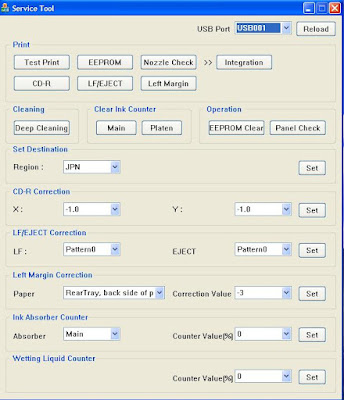 |
| Canon MP Series EEPROM Resetter Tool User Interface |
Special thanks to trickscollections and indoreset.for their initial remarks.
Glad to be of help and that is all for Canon Printer Reset EEPROM MP Siries 198/ 250/ 258/ 270/ 276/ 496/ 558/ 568/ 648.
Go to link Download

Saturday, March 11, 2017
Canon Pixma MG2420 series MP
Canon Pixma MG2420 series MP
Canon Pixma MG2420 series MP
 |
Canon Pixma MG2420 |
Canon MG2420 Download Free Driver - Version Canon MG2400 series MP relentless innovation so as to provide comfort and even convenience for consumers, canon printer that is so easy to present in the process of its operation both use in offices, homes as well as for the students.
Driver support was also very easy to get as you see below is a support for the course of the operation, the following complete data:
For System Operation :
- Windows Vista SP1 or later(32bit)
Windows Vista SP1 or later(64bit) - Windows 8.1(32bit)
- Windows 8.1(64bit)
- Windows 8(32bit)
- Windows 8(64bit)
- Windows 7(32bit)
- Windows 7(64bit)
Information File :
- File Name : win-mg2400-1_0-ucd.exe
- File Version : 1.0
- File Size : 47.12 MB
- File Languages : English | Spanish
Canon MG2400 series MP
Windows XP - Windows 8 - Windows 7 - Windows Vista - Windows XPDownload Driver Full Package
Go to link Download
Thursday, December 1, 2016
Cara Reset Canon Pixma MP280 Series
Cara Reset Canon Pixma MP280 Series

Mungkin bisa sedikit menolong dengan malakukan hal-hal berikut :
A. RESET PRINTER
- Matikan Canon MP287 yang error E08 dengan menekan tombol POWERnya. Jangan cabut kabel power.
- Tekan dan Tahan tombol STOP/RESET diikuti dengan menekan Tombol POWER. Jadi kedua tombol posisi tertekan.
- Lepas tombol STOP/RESET tapi jangan lepas tombol POWER.
- Dalam keadaan tombol POWER masih tertekan, tekan tombol STOP/RESET sebanyak 6 kali.
- Kemudian lepaskan kedua tombol bersamaan.
Printer yang error akan melakukan inisialisasi beberapa saat seperti ketika printer dicoba pertama pada saat beli. Tunggu sampai LCD panel pada printer yang error tadi menunjukkan Hitam (blank). - Printer MP258 akan terdeteksi sebagai device baru di komputer anda, walaupun tadinya sudah terpasang driver printer tersebut. Abaikan saja kondisi ini.
- Kondisi printer yang blank pada LCD menunjukkan bahwa Printer dalam keadaanService Mode dan siap untuk direset menggunakan software.
Jika kabel listrik tercabut, maka langkah diatas harus diulang lagi.
Setelah melakukan langkah diatas, selanjutnya kita reset menggunakan Tool (Software)
B. RESET SOFTWARE
- Download program resetter MP287 pada link di bawah postingan ini.
- Siapkan 4 – 5 kertas di Printer, karena nanti akan digunakan untuk proses reset.
- Buka program resetter MP280 series.
- Di menu absorber Clear ink counter pilih Main kemudian klik SET di sebelah kanannya.
- Di menu ink absorber counter pilih Main kemudian klik SET di sebelah kanannya.
- Kemudian klik EEOPROM. maka printer akan cetak 1 halaman.
- Printer Canon MP287 yang error E08 akan normal kembali.
- Kemudian matikan MP258/MP250 dengan menekan tombol Power.
- Selesai.

Download Tool Reset Canon Pixma MP280 Series

Tool-ny Support Windows 8 Loch….
Go to link Download
Friday, November 11, 2016
Canon PIXMA MG Series MG3122 Free Download
Canon PIXMA MG Series MG3122 Free Download
Canon PIXMA MG Series MG3122 Free Download
Canon PIXMA MG Series MG3122 Free Download For a considerable lot of our items, Canon has Mac OS X results accessible. Programming and drivers for these items are accessible either from Apple Update, on the CD included with the Canon item, or as downloads from the Canon Download Library site.
Canon PIXMA MG Series MG3122 Free Download Items not recorded may not be underpinned by Mac OS X, or will be backed later on. Group will keep on updaing this page with the most cutting-edge-data in regards to programming and drivers for our items. It would be ideal if you return consistently.
Canon PIXMA MG Series MG3122 Free Download For different OS-similarity data for your Canon item please click here. Select your model and go to the item detail page. click on "Drivers& Software" and afterward pick your working framework and rendition.
To check whether your item is perfect with Mac OS X, please see underneath
Advanced Camera, Digital SLR, Digital Video, Compact Printer (Selphy) help impending soon. Kindly return.
Canon PIXMA MG Series MG3122 Free Download
Go to link Download
Monday, October 10, 2016
Cara Reset Printer Canon Series MP237
Cara Reset Printer Canon Series MP237
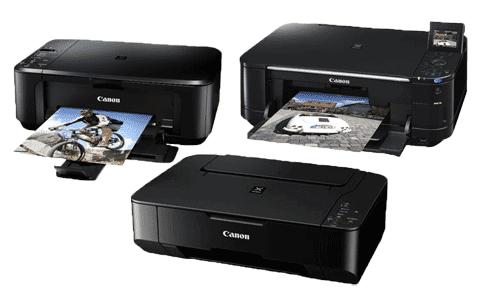 Berikut ini adalah cara reset printer Canon series MP237 untuk mengatasi pesan error, sehingga printer dapat digunakan sebagaimana mestinya. Error yang ditampilkan printer canon biasanya P07 "A printer error has occurred" atau E08 "The ink absorber is almost full".
Untuk memperbaiki masalah error printer Canon ini dapat menggunakan Resetter Service Tool. Software resetter ini dapat mengatasi error type printer canon series seperti MP237 dan MP287, sedangkan saya sudah mencobanya untuk type MP237.
Mengatasi Error Printer Canon Series
Untuk mengatasi error printer Canon series terlebih dahulu download di link berikut resetter printer Canon atau tersedia di langkah-langkah dibawah. Type printer canon series seperti MP237, MP287.

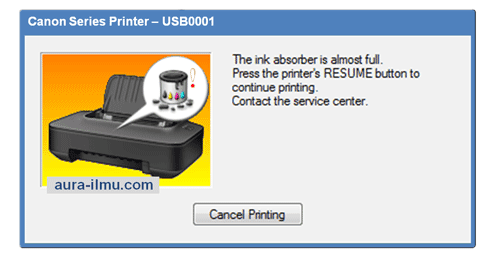
Penyebab Error Ink Absorber Full
Printer Canon menggunakan bantalan kecil berupa spons untuk menyerap tinta pembuangan yang terakumulasi saat mencetak dan membersihkan head cartridge. Ketika bantalan spons ini penuh, printer akan memberitahu dengan pesan error seperti P07 atau E08 "A Printer error has occurred" atau "Ink Absorber full".
Langkah-langkah mengatasi Error Printer Canon
Kita dapat dengan mudah mengatasi pesan error ini dengan menggunakan software resetter printer Canon sebagai solusinya atau dikenal resetter service tool.
1. Download resetter service tool disini.
2. Reset Error Printer Canon dengan resetter service tool yang sudah di download. Perlu diketahui Printer Canon harus dalam keadaan Service Mode supaya bisa direset diuraikan dilangkah selanjutnya.
Printer Canon Service Mode
1. Dalam keadaan kabel power listrik terpasang (Printer blm dihidupkan) ~ Tekan tombol STOP/RESET dan Tahan (jangan dilepas), kemudian Tekan Tombol POWER, jadi kedua tombol dalam posisi tertekan.
2. Lepas tombol STOP/RESET tapi jangan lepas tombol POWER.
3. Dalam keadaan tombol POWER masih tertekan, tekan tombol STOP/RESET sebanyak 6 kali.
4. Kemudian lepaskan kedua tombol tersebut bersamaan. Abaikan saja jika ada pesan error. Maka Printer Canon sudah dalam kondisi Service Mode dan bisa di reset.
Cara Reset dengan Service Tool
Extract dengan klik kanan File service tool yang sudah di download tadi menggunakan
Kemudian jalankan Resetter Service Tool V3400 dengan Printer Canon dalam keadaan Service Mode dan SIAPKAN beberapa Kertas pada Printer.

1. Di bagian "Clear Ink Counter" pilih Absorber ke Main kemudian klik SET di sebelah kanannya, mungkin printer akan mencetak 1 halaman.
2. Di bagian "Ink Absorber Counter" pilih Absorber ke Main kemudian klik SET di sebelah kanannya.
3. Di bagian "Print" kemudian klik EEPROM. maka printer akan cetak 1 halaman.
4. Reset Printer telah selesai, jangan Lupa kemudian matikan Printer dan nyalakan kembali seperti biasa supaya dalam keadaan Normal Mode dan mudah-mudahan siap digunakan.
Selesai sudah Mereset Printer Canon Series, dan dapat segera digunakan kembali. Mudah-mudahan bermanfaat.
Go to link Download
Subscribe to:
Posts (Atom)